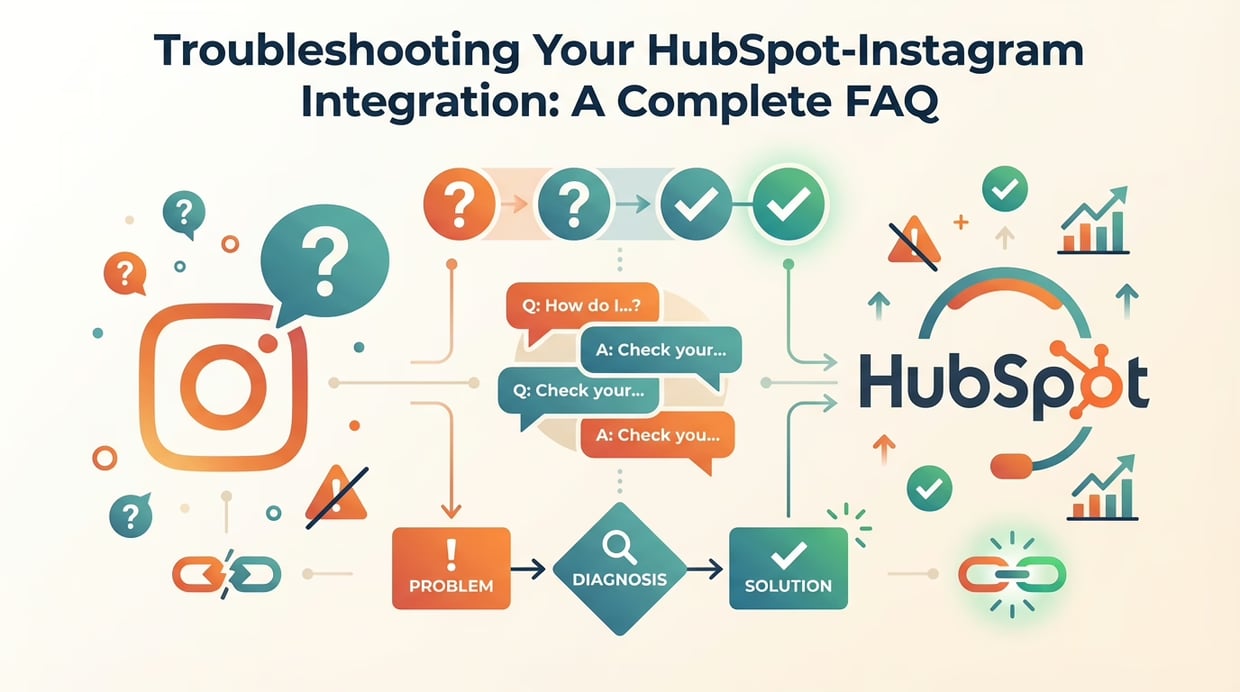
So, you’ve taken the leap. You’ve connected HubSpot and Instagram, ready for a seamless flow of leads and conversations. But then… something goes wrong. A connection fails. DMs don’t appear. A workflow doesn’t trigger.
Don’t panic. Technology, especially when it involves two massive platforms like HubSpot and Instagram, can have its hiccups. The good news is that 99% of issues are common and easily fixable.
At HubBase, we’ve helped thousands of users set up and troubleshoot their integrations. We’ve seen it all. And we’ve compiled our knowledge into this definitive troubleshooting guide. Think of this as your go-to FAQ for any and all HubSpot-Instagram integration headaches.
Let’s dive in and get you back on track.
Category 1: Connection & Authorization Issues
These are the most common problems users face right at the start. They usually stem from incorrect account types or permissions.
FAQ 1: “I can’t connect my Instagram account! The option is greyed out or I get an error.”
The Cause: This is almost always because your Instagram account is not a Business Account. Creator accounts and Personal accounts cannot be used for this type of integration.
The Fix:
- Open the Instagram app.
- Go to Settings > Account.
- Scroll down and tap “Switch to Professional Account.”
- Choose “Business” (not “Creator”).
- Follow the prompts to connect it to your Facebook Business Page.
Pro-Tip: You MUST have a Facebook Business Page, and you must be an admin of that page. The two are inextricably linked in Meta’s ecosystem.
FAQ 2: “I’ve connected my account, but HubSpot (or HubBase) says it’s not authorized.”
The Cause: During the authorization process, you likely didn’t grant all the necessary permissions. It’s easy to accidentally click “No” or uncheck a box, which can cripple the integration.
The Fix:
- In HubSpot: Go to Settings > Integrations > Connected Apps. Find the Instagram/Facebook connection and disconnect it.
- In Facebook: Go to Business Settings > Integrations > Business Apps. Find HubSpot (and/or HubBase) and remove it.
- Reconnect from scratch. This time, when the permission pop-ups appear, say YES to everything. Don’t uncheck any boxes. These permissions are vital for the integration to read messages and create contacts.
Category 2: Data Syncing Problems (DMs, Comments, etc.)
Your accounts are connected, but the data isn’t flowing. Let’s debug.
FAQ 3: “My Instagram DMs aren’t showing up in HubSpot!”
The Cause: This is the #1 issue for users relying on HubSpot’s native integration. The native tool DOES NOT SYNC DIRECT MESSAGES. If you need to sync DMs, you absolutely need a third-party tool like HubBase.
The Fix (for HubBase users):
- Check Your HubBase Dashboard: Is your account active and connected? A green light in our dashboard means we’re successfully connected to your accounts.
- Check Instagram Permissions: In the Instagram app, go to Settings > Messages and story replies > Message controls. Ensure that you are allowing message access. It should be set to “Primary” or “General” and not turned off.
- Reconnect: Sometimes a password change or a temporary glitch can de-authorize the connection. The quickest fix is to log into your HubBase dashboard and simply reconnect your accounts. It takes 30 seconds and solves most issues.
FAQ 4: “A new contact was created, but their name is just their Instagram username.”
The Cause: This is expected behavior. The Instagram API only provides the username and public profile information. It does not provide the user’s real name or email address.
The Fix (and Best Practice): This isn’t a bug; it’s an opportunity! Your first automated follow-up should be designed to capture this information.
Workflow Idea: Create a workflow that triggers when a new contact is created from Instagram. Send them an automated email that says, “Hey! Thanks for reaching out on Instagram. What’s the best email to send that info to?” When they reply, their email is captured and associated with their contact record.
FAQ 5: “My past DMs from before I signed up aren’t there.”
The Cause: Integrations can only pull data from the moment they are authorized. They cannot retroactively import your entire DM history.
The Fix: There isn’t a technical fix for this, but the solution is to start engaging! As you continue conversations with those past contacts, their new messages will be synced, and their contact records will be created or updated in HubSpot.
Category 3: Automation & Workflow Hiccups
FAQ 6: “My HubSpot workflow isn’t triggering when a new Instagram DM arrives.”
The Cause: Your workflow trigger is likely misconfigured.
The Fix:
- Go to your workflow in HubSpot.
- Your trigger should be based on a Timeline Activity.
- Set the trigger to be: “Activity type is ‘Instagram Direct Message’” (or whatever you’ve named it in your HubBase settings).
- You can add further filters, like “Activity contains any of ‘pricing, demo, quote.’”
- Ensure the workflow is turned ON.
Pro-Tip: Test your trigger with a contact you’ve manually enrolled. If the workflow runs correctly, the issue is with the trigger criteria, not the workflow itself.
Still Stuck? We’re Here for You.
While this FAQ covers the vast majority of issues, every HubSpot portal is unique. If you’ve run through these steps and are still scratching your head, we’re here to help.
At HubBase, our support is as good as our software. If you’re a customer, you can reach out to our support team directly from your dashboard. We’ll hop on a call, look at your portal, and get you sorted out in no time.
Don’t let a small technical hiccup stop you from building a powerful lead machine. Check out HubBase and let us handle the technical headaches for you!


















.png?width=343&height=334&name=Frame%20(3).png)
.png?width=343&height=479&name=Frame%20(4).png)
 3 min read


.png?width=204&height=62&name=Frame%20(13).png)
.png?width=204&height=62&name=Frame%20(18).png)
.png?width=204&height=62&name=Frame%20(11).png)
.png?width=204&height=62&name=Frame%20(12).png)
.png?width=204&height=62&name=Frame%20(15).png)
.png?width=204&height=62&name=Frame%20(16).png)
.png?width=204&height=62&name=Frame%20(17).png)
.png?width=194&height=62&name=Frame%20(20).png)
